Clear, screen-by-screen Windows and Android guide covering server deployment, Tunnel/Mesh links, DNS & CDN, diagnostics, and automated infrastructure powered by Black Fox AI.
Pro Mode is the complete superset of Basic Mode: Everything in Basic Mode (Central setup, SSH, Full Deploy, up to 2 Exits, and Configure Panel) lives inside Pro Mode. Mastering Pro covers both personal and commercial multi-server workflows.
AI Assistant Pro matches Pro Mode under the hood: It delivers the same full infrastructure engine, except every operation is carried out by Black Fox Group's own AI via the Tasks panel and Chat with AI—alongside exclusive tools: Add Outbounds (inject custom outbound configs onto the panel), VPS To VPN MCP, Diagnose & Repair, and Link Test.
One explanation beside each exact screen: Every step pairs its dedicated description right beside its matching Windows, Android, Input Form, or Action Dialog screenshot at uniform sizes per category.
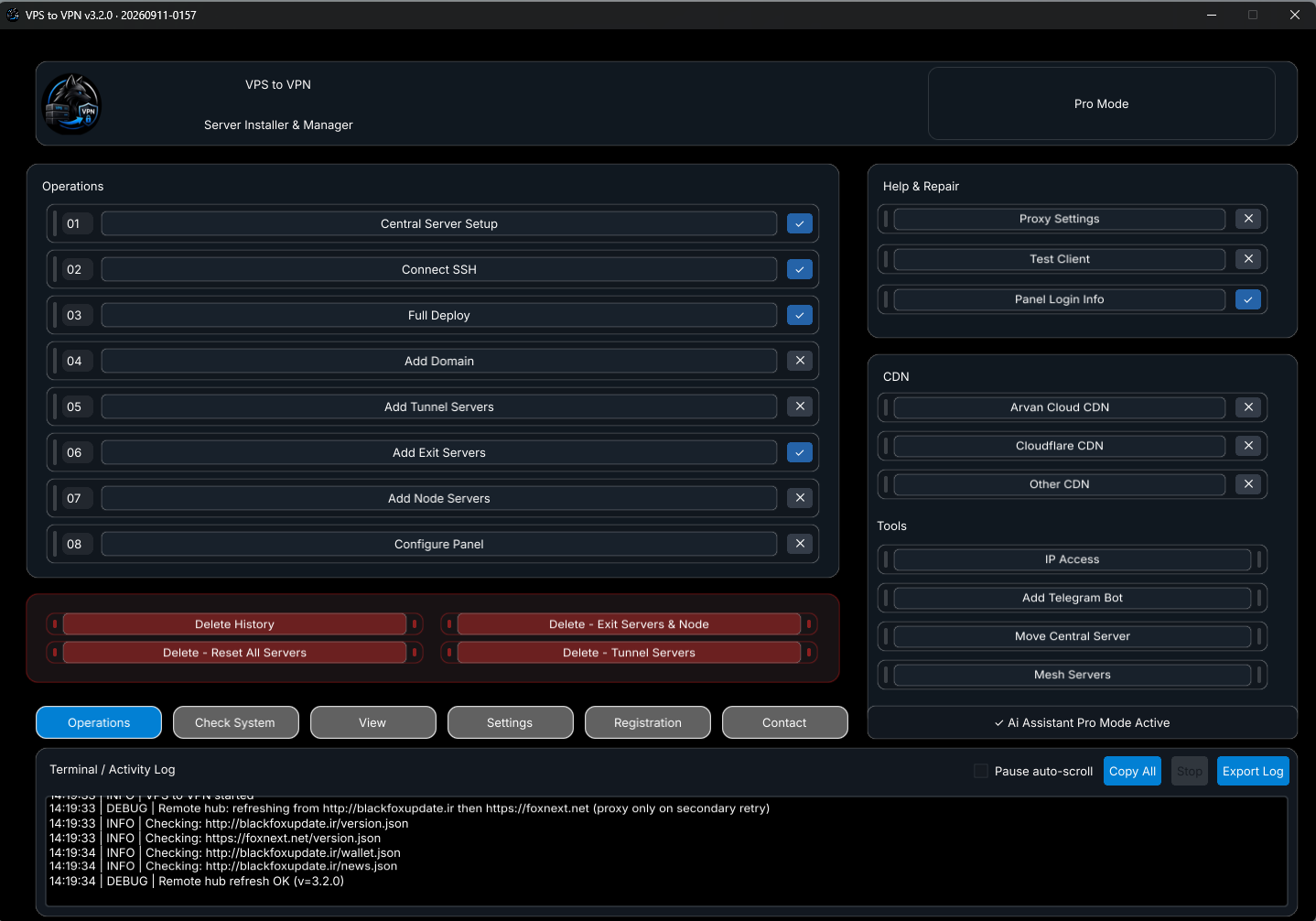
Pro Mode unlocks the complete server management layout across desktop and mobile. Below are the full Windows dashboard and both sections of the Android Operations screen:
Windows Main Screen
Windows Pro Mode Operations Dashboard
The Windows dashboard puts all core setup actions, utilities, cleanup controls, and real-time logs into one view:
Top Bar: Shows VPS to VPN, Server Installer & Manager, and active mode badge (Pro Mode).
Operations Column (01–08): Ordered workflow buttons from Central Server Setup to Configure Panel with live ✓ / ✕ status indicators.
Right Column: Quick cards for Help & Repair (Proxy Settings, Test Client, Panel Login Info), CDN, and Tools.
Bottom Bar & Terminal: Red Delete controls, 6 navigation tabs (Operations, Check System, View, Settings, Registration, Contact), plus live Terminal / Activity Log with Pause auto-scroll, Copy All, Stop, and Export Log.
Windows — Full Pro Mode Operations Dashboard
Android App
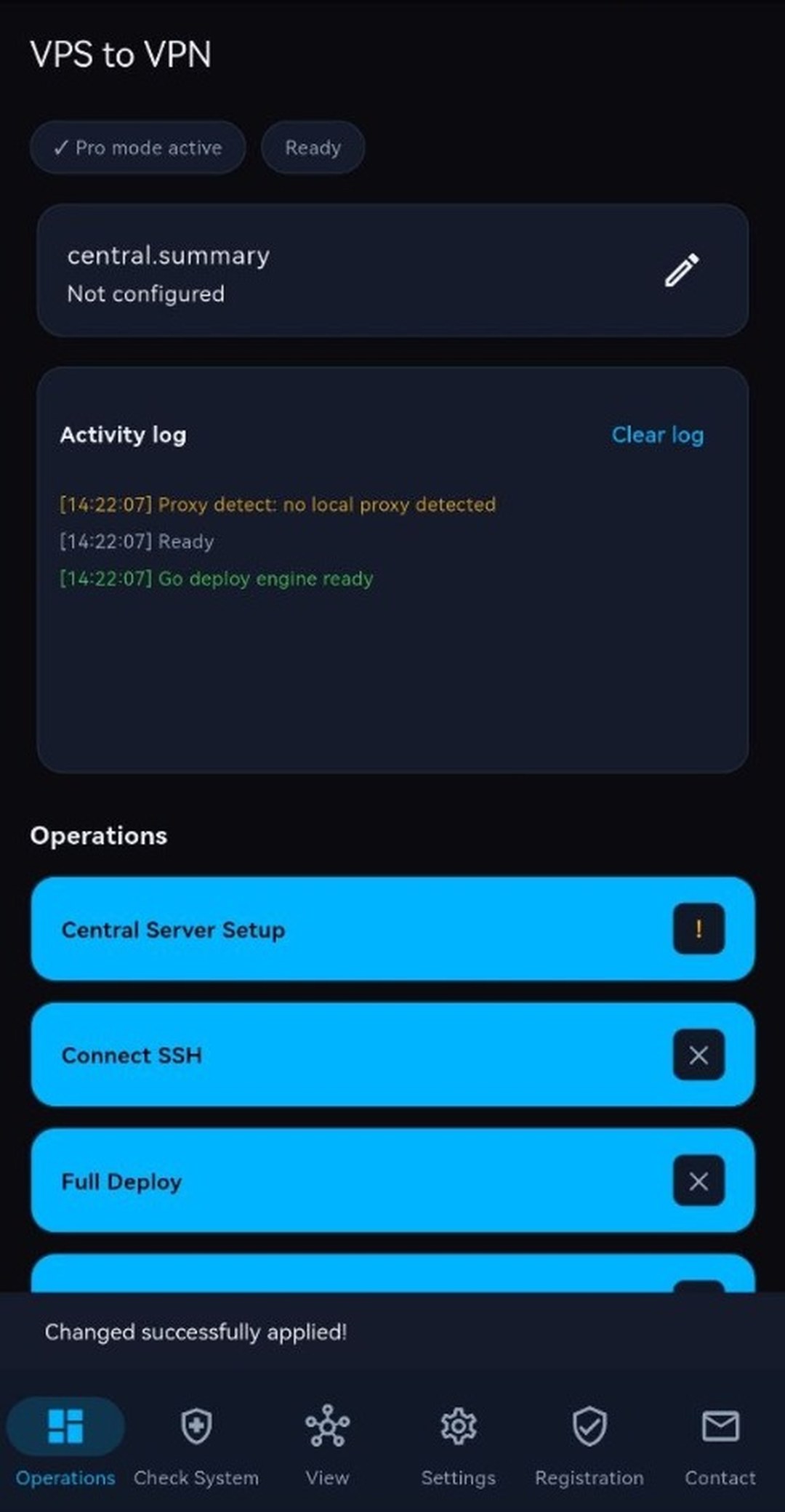
Android Operations Screen — Status, Log & Top Steps
The upper Android Operations screen gives immediate overview and SSH control on mobile:
Status Badges & Central Summary: Displays Pro mode active, Ready, and a quick-edit central.summary card.
Activity log Card: Live deployment & proxy detection output with a one-tap Clear log button.
Operations Stack & Bottom Bar: Steps 01–08 with ! / ✕ / ✓ indicators above the persistent 6-tab bottom navigation bar.
Scrolling down inside Android Operations gives full mobile access to every commercial Pro utility:
CDN Section: Direct buttons for Arvan Cloud CDN, Cloudflare CDN, and Other CDN.
Tools & Mesh:IP Access, Add Telegram Bot, Move Central Server, and Mesh Servers.
Delete Section: Distinct red buttons for Delete History, DELETE - Remove All Exit Servers, Delete Nodes, DELETE - Reset All Servers, and Delete Tunnel.
Basic Mode note: Switching to Basic keeps only Central Server Setup, Connect SSH, Full Deploy, up to 2 Exits, and Configure Panel; switching to Pro Mode reveals all commercial infrastructure controls below.
2. Operations 01–03: Central Server Setup, Connect SSH & Full Deploy
Every deployment begins by saving your Central Server SSH credentials and installing prerequisites plus the 3X-UI (Sanaei) panel:
Input Form Modal
01 — Central Server Setup Form
Register your origin or Central VPS connection details before connecting SSH:
Required Connection Fields: Fill in Server IP *, Port * (default 22), Username * (typically root), Password *, and optional Country.
Advanced Settings: Toggle SSH Key Provisioning (install App-managed Key), Privilege Escalation (for root login when needed), and Enable Proxy, then click Save & Continue before clicking 02 — Connect SSH.
Central Server Setup & Advanced Settings Form
Action Dialog
03 — Full Deploy Source Picker
Full Deploy provisions Ubuntu prerequisites, WireGuard, and the 3X-UI (Sanaei) panel:
Install From Sanaei Github: Fetches and installs 3X-UI directly from Sanaei's GitHub release.
Install From VPS To VPN Hub: Pulls installation assets from the dedicated app hub when GitHub access is throttled or blocked.
Install From Local Pc: Uploads offline installer packages from your computer directly to the VPS over SSH.
Use Pro operations 04–07 to attach domains, build multi-hop Tunnel chains, add up to 6 fixed-IP Exit servers, and connect remote Node panels:
Windows Main Screen
04 — Add Domain: Free Domain Subdomains
Register an instant free subdomain for your panel or Telegram webhook without buying a custom domain:
Supported Extensions: Register subdomains on .ir, .site, .online, or .store pointing to your Central IP.
Restricted-Network Tip: Inside Iran, select .ir and use Disable HTTPS (DNS-only) if CDN HTTPS proxying interferes with domestic server access.
Add Domain — Free Domain Registration Tab
Windows Main Screen
04 — Add Domain: Cloudflare / ArvanCloud DNS Manager
Manage your own domain records directly from inside VPS to VPN:
API Token & Zones: Connect a Cloudflare or ArvanCloud API Token to load your zones.
One-Click DNS Records: Create A → Central IP, toggle Auto Update Domain, switch HTTPS/CDN proxy on or off, or deploy a Bot Webhook Subdomain (plus third tab External Proxy).
Add Domain — DNS Manager Tab
Input Form Modal
05 — Add Tunnel Servers Form (Chain 1–6)
Add intermediate relay servers between your Central host and Exit locations:
Chain Number (1–6): Pick a chain position so relays can link linearly or in parallel.
Connection & Connect To: Enter Host / IP *, Port *, Username *, Password *, Country *, and set Connect To either to Central Server or an earlier hop.
Add Tunnel Servers Input Form
Input Form Modal
06 — Add Exit Servers Form (Up to 6 Fixed-IP Locations)
Configure international Exit endpoints where user traffic reaches the open internet:
Up to 6 Exit Slots: Manage #1 through #6 simultaneously for multi-location commercial offerings.
Direct or Chained Routing: Attach any Exit directly to Central Server or behind a Tunnel Server.
Add Exit Servers Input Form
Input Form Modal
07 — Add Node Servers Form
Expand capacity by connecting remote 3X-UI panel nodes controlled from Central:
Automated Node Linking: Installs the remote node panel, exchanges tokens, selects the preferred Link Type, and registers the node inside your Central 3X-UI panel.
Add Node Servers Input Form
4. Operation 08 & Help & Repair: Configure Panel, Proxy, Test Client & Login Info
Once Exit or Node servers exist, configure client protocols on the panel and set up a local SSH proxy whenever restricted networks require it:
Action Dialog
08 — Configure Panel (Step 1: Select Server)
Select which server receives automated inbound/outbound configuration:
Server Selection: Choose your target Exit, Node, or multi-hop server and click Continue.
Key Distinction: Always use Full Deploy to install 3X-UI on Central first; use Configure Panel after adding Exit or Node servers.
Configure Panel — Target Server Dialog
Action Dialog
08 — Configure Panel (Step 2: Protocols), Test Client & Panel Login Info
Enable client protocols and retrieve generated access details cleanly:
Inbound Protocols: Select VLESS — General, TROJAN — Stream / Social, VMESS — Legacy compat, SHADOWSOCKS (optional), or WIREGUARD — WireGuard (UDP); the app assigns randomized ports and panel outbound routes.
Test Client & Panel Login Info: Generate and test sample client configs with Test Client, or view & copy stored SSH details and your hidden 3X-UI URL, port, username, and password in Panel Login Info.
Configure Panel — Protocol Selection Dialog
Input Form Modal
SSH Proxy Settings (Help & Repair)
Bypass restricted local internet routes when downloading updates or connecting to remote SSH hosts:
Profiles: Switch between None, Iran Profile (default 127.0.0.1:10808), and Free Country Profile (default 127.0.0.1:7890), or enable Always Use Detected Proxy.
SSH Proxy Settings Form
5. CDN Configuration: Cloudflare, Arvan Cloud & Other CDN
Route panel or tunnel domains behind a CDN edge using built-in API integration forms:
Input Form Modal
Configure Cloudflare CDN
Automate Cloudflare A/CNAME records and CDN proxying directly from the app:
Required Inputs: Enter Name, Domain *, API Key / Token *, optional Zone / Resource ID, Origin IP *, and Origin URL.
Configure CDN — Cloudflare Form
Input Form Modal
Configure Arvan Cloud CDN & Other CDN
Create A records and CDN routing in ArvanCloud or configure custom CDN providers:
Arvan Cloud CDN: Supply API Key / Token *, Domain *, Origin IP *, optional Zone / Resource ID and Origin URL, plus DNS record/proxy settings.
Other CDN: Supports custom third-party CDN endpoints with the same structured form.
Configure CDN — Arvan Cloud CDN Form
6. Tools Section: IP Access, Telegram Bots, Move Central & Panel Manager
Utility dialogs in the Tools section verify reachability, deploy bots, migrate your Central server, and back up or restore panels:
Action Dialog
IP Access Dual-Point Reachability Check
Verify whether a VPS IP works domestically, internationally, and behind Cloudflare before deploying users:
This PC vs Outside (check-host): Compares reachability from your computer against external probes to flag domestic-only filtering and verifies Free Domain Cloudflare status.
IP Access Reachability Dialog
Action Dialog
Add Telegram Bot Menu
Choose a guided Telegram bot installer or migration tool without manual terminal setup:
Available Actions:Install Mirza, Smart Support Bot, Move Bot, Bot VPN, and Delete Bot.
Add Telegram Bot Action Menu
Input Form Modal
Install Mirza Bot Wizard
Deploy the Mirza VPN store bot onto Central or a dedicated VPS:
Setup Fields: Pick the target host, paste your @BotFather token, set admin numeric ID, and optionally link a webhook subdomain configured via Add Domain.
Install Mirza Bot Input Form
Action Dialog
Move Central Server & Panel Manager Launcher
Safely migrate your live Central infrastructure or manage your existing 3X-UI panel:
Move Central to a new server: Transfers Tunnel, Exit, and Node definitions along with inbounds, outbounds, and clients to a new Central VPS cleanly.
Real-time visual telemetry of every host, inter-server tunnel link, and Link Monitor agent:
Live Counters & Topology Map: Inspect Hosts, Up, Issues, and Unknown cards plus color-coded topology squares/lines.
Active Link Monitor & Repair: Track active Watchdog servers providing fast automatic path failover, refresh health via Refresh Status, or run Repair Paths.
View Mesh Servers — Live Topology & Link Monitor
Windows Main Screen
Mesh Tab 2: Server Connection Manager (9 Link Types & Backup Paths)
Choose link protocols, activate redundant backups, and install headless Watchdog agents:
Select Two Servers & Optimize VPS: Pick two linked servers to inspect Edge Status / Watchdog and configure links, or optimize a single VPS.
Backup Paths & systemd Persistence: Check multiple failover protocols simultaneously; the systemd mesh-health agent keeps monitoring even when the desktop/mobile app is closed.
Server Connection Manager — 9 Link Types & Backup Paths
8. Delete Tools, Reset All Servers & Factory Reset Panel
The red Delete controls operate at strictly separate scopes so you can remove single hops safely or reset everything cleanly:
Selectively remove individual Exit or Node servers without disrupting the rest of your cluster:
Targeted Server Deletion: Pick the specific Exit or Node host to clean up; when deleting a Tunnel chain, always remove dependent Exit servers first.
Delete History Difference:Delete History clears only the local server list stored inside the app while keeping remote Linux servers, language, and licenses intact.
Delete - Exit Servers & Node Selection Dialog
Action Dialog
Delete - Reset All Servers Confirmation
Reverts all configured VPN, WireGuard, Mesh, and panel services across registered hosts:
Full Infrastructure Wipe: Removes deployed configs across registered servers and resets local app inventory—take a panel backup beforehand if clients are active.
Reset All Servers Confirmation Dialog
Action Dialog
Factory Reset Panel Dialog
Resets only the Central 3X-UI panel data back to a clean initial installation:
Clears Inbounds, Clients & Subdomains: Keeps the host server intact while clearing panel client records—use Backup Panel beforehand to preserve users.
Factory Reset Panel Confirmation Dialog
9. Check System Tab (Diagnostic Center — Windows & Android)
Check System runs read-only health verification across your entire server chain without altering server configuration:
Windows Main Screen
Check System Tab on Windows (Diagnostic Center)
Read-only infrastructure inspection verifying SSH, services, networking, DNS/CDN, and Exits:
Diagnostic Coverage: Verifies SSH Connectivity, SSH Host Key, Xray, server internet reachability, WireGuard, Panel, DNS, CDN, and Exit servers.
Counters & Export: Summarizes OK, Warnings, and Errors with Run Checks and Export Log.
Windows — Check System Diagnostic Center
Android App
Check System Tab on Android
Run the exact same non-destructive infrastructure diagnostics from your Android phone:
Mobile On-the-Go Checks: Tap the second bottom tab (Check System) to verify server links, DNS/CDN, and panel health anytime.
Manage device identifiers, activation codes, Reactivation, and verified Black Fox Group support channels:
Windows Main Screen
Registration Tab on Windows (Device ID & Licensing)
Activate licenses, recover prior activations, and copy identifiers for upgrades or support:
Device Information & Status: Copy Device ID / System ID, inspect active tier/expiry, or restore an existing license after OS reinstall with Reactivation.
Your Activation Code & Enter Code: Copy your stored code for Website Upgrades / AI Recharge, or enter a new key from Activation (BFXB Basic, BFXP Pro, BFXA AI Pro, -CLM-, or BFXQ AI quota) and click Activate.
Windows — Registration Tab
Android App
Registration Tab on Android
Activate, inspect expiry, and recover your Android license cleanly:
Mobile Activation: Copy Device ID, run Reactivation, or paste activation codes identically to desktop.
Android — Registration Tab
Windows Main Screen
Contact Tab on Windows
Official Black Fox Group channels built directly into the application:
Verified Links: Website www.foxnext.net, support email [email protected], GitHub BlackFoxGroup, channel @BlackFoxVpnn, support handle @HiBlackFoxVpn, bot @BlackFox_Agent_Bot, and community @Black_Fox_Group.
Windows — Contact Tab
Android App
Contact Tab on Android
Tap directly to open official support chats, channels, website, or GitHub from Android:
One-Tap Channels: Avoid impersonators by opening verified support links straight from Contact.
Android — Contact Tab
13. AI Assistant Pro: Black Fox AI, Tasks, Chat & Add Outbounds
AI Assistant Pro runs on the exact same core capabilities as Pro Mode, but automates workflows through Black Fox Group's own AI via Tasks and natural-language chat—adding exclusive AI capabilities:
Windows Main Screen
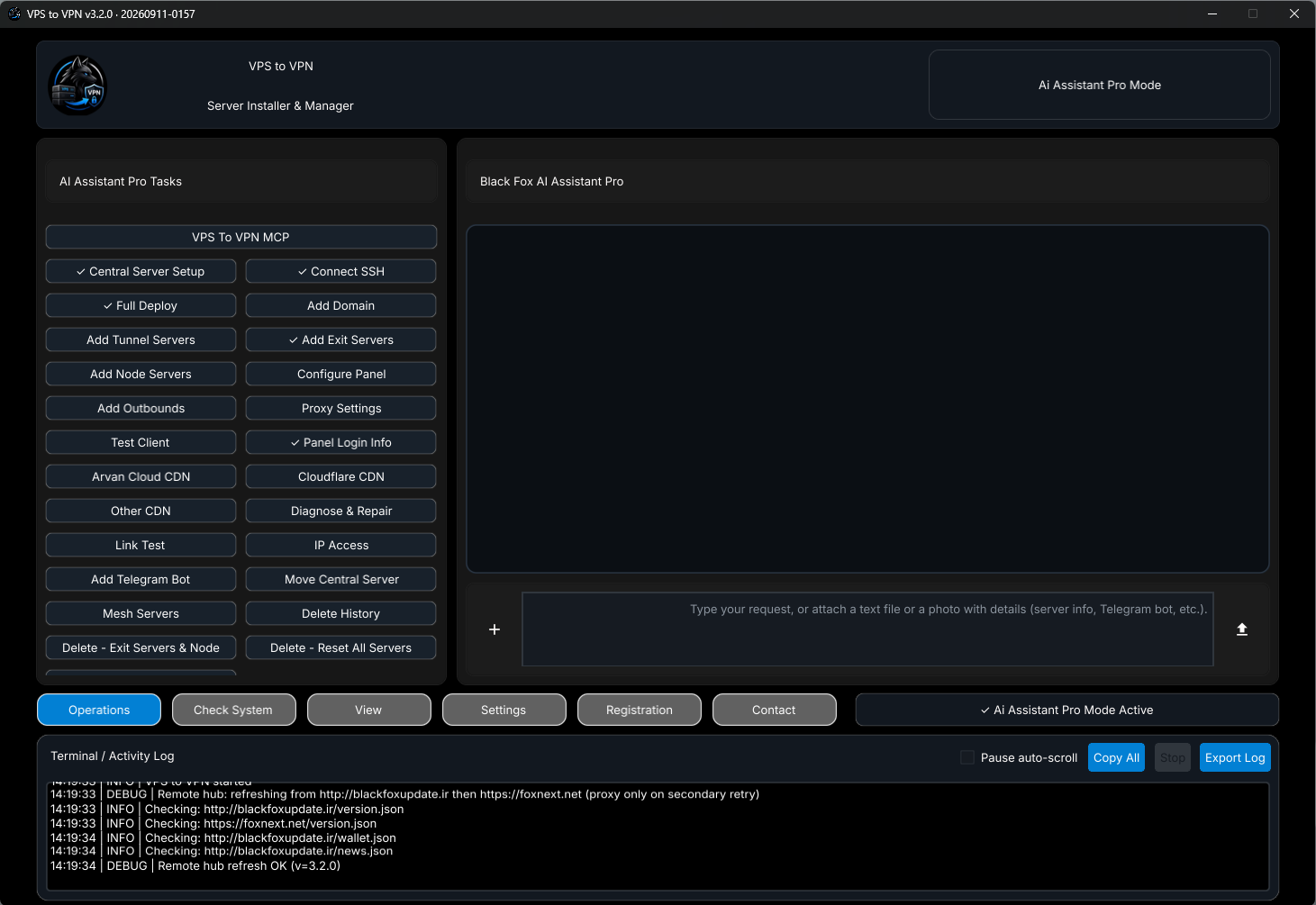
AI Assistant Pro on Windows — Black Fox AI, Tasks, Chat & Add Outbounds
Shares the full underlying capabilities of Pro Mode, operated through Black Fox Group's own AI:
1. Left Column (AI Assistant Pro Tasks): Dedicated quick buttons including VPS To VPN MCP, Central Server Setup, Connect SSH, Full Deploy, Add Domain, Add Tunnel Servers, Add Exit Servers, Add Node Servers, Configure Panel, Add Outbounds, Proxy Settings, Test Client, Panel Login Info, CDNs, Diagnose & Repair, Link Test, IP Access, Telegram bots, Move Central, Mesh, and Delete actions.
2. Right Chat Workspace (Black Fox AI Assistant Pro): Write requests in plain language or attach text files/screenshots (VPS details, logs, bot info) via +. Black Fox AI reads current app state, asks for missing fields, and requests explicit confirmation before changing any server. Manual Pro controls stay accessible via View.
3. Exclusive Add Outbounds: Click Add Outbounds and paste or attach a v2ray / xray JSON config; Black Fox AI injects it directly as a custom outbound on your 3X-UI panel and configures matching inbound/client access (up to 10 server ledger entries).
4. Exclusive Diagnose & Repair & Link Test: Automated multi-layer diagnostics/repairs plus cross-server link benchmarking (recommending WireGuard, GRE, or Reverse Tunnel Stealth-WSS).
Windows — AI Assistant Pro (Tasks Column + Black Fox AI Chat)
Android App
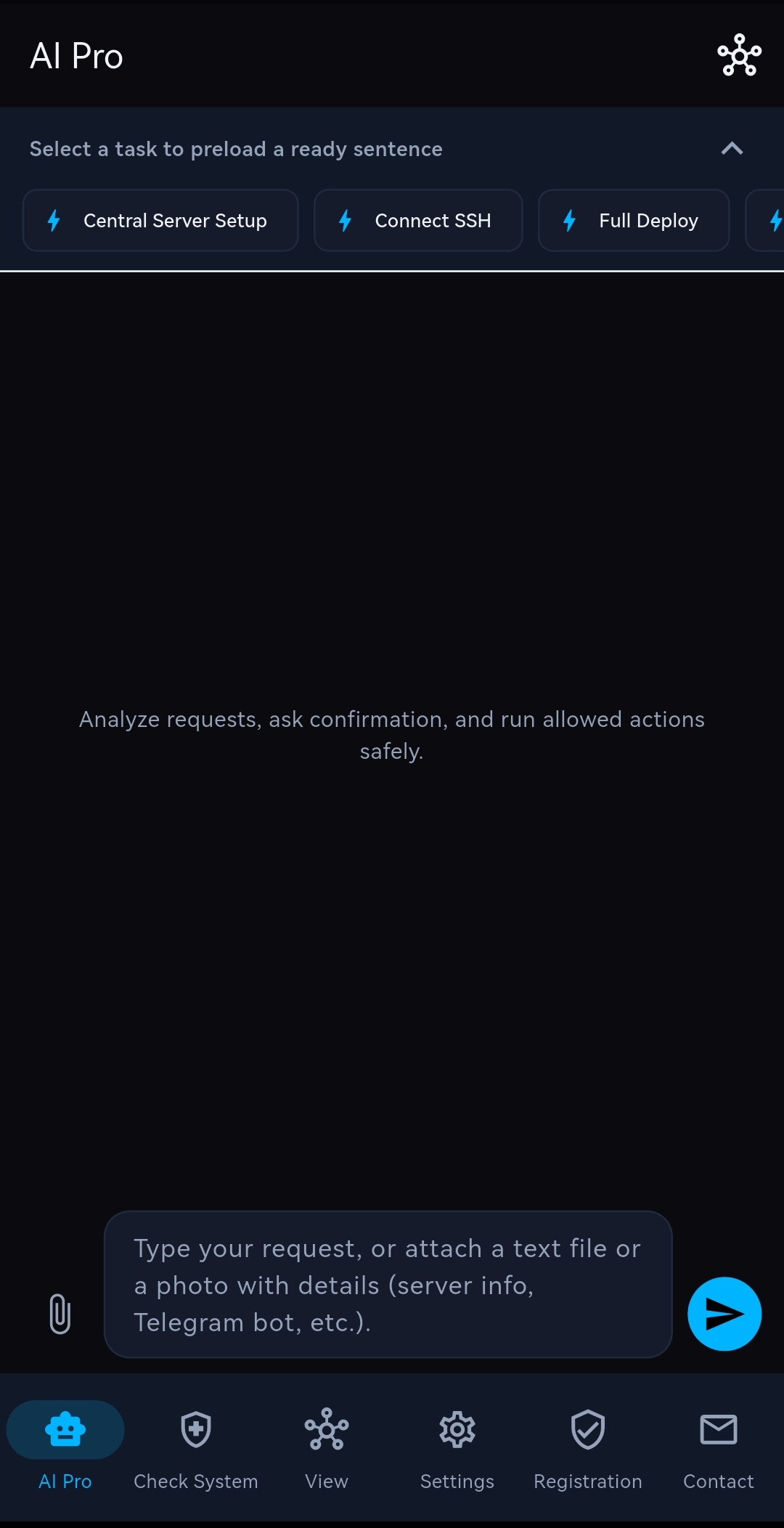
AI Pro on Android — Quick Task Chips & Paperclip Attachments
Full Black Fox AI assistance and guarded server execution tuned for mobile screens:
Quick Preload Chips: Tap chips under Select a task to preload a ready sentence to populate structured prompts instantly.
Attachments & Topology Shortcut: Use the paperclip icon beside the message box to attach logs, text configs, or screenshots, with safe confirmation prompts and top-right Topology access.
Android — AI Pro Quick Tasks & Chat
14. VPS To VPN MCP: Connecting External AI Tools & IDE Agents
At the top of AI Assistant Pro Tasks, the VPS To VPN MCP button bridges your live server workspace with external stdio MCP clients (such as Cursor or other compatible AI agents):
Step 1 — Activate: Click VPS To VPN MCP and choose Activate to enable the local MCP binary bridge.
Step 2 — Copy mcp.json: Use Copy mcp.json to copy the ready JSON configuration and save it inside your AI tool's MCP config file (or pass it to your AI agent to install).
Step 3 — Green Verification & Masked Secrets: Once connected, the MCP button turns green. Server state is shared in read-only / policy-safe mode with SSH passwords, panel passwords, and tokens completely masked.
Keep App Running: Keep the VPS to VPN application open while external AI tools query your MCP connection.
Credential Safety: Secrets and passwords never appear in plain text inside MCP inspection responses.
15. FAQ & Fast Troubleshooting
Question / Symptom
Common Cause
Recommended Solution
How do Basic, Pro, and AI Assistant Pro differ?
Scope of multi-server tools and execution mode.
Pro is the completed superset of Basic (adds 6 Tunnels, 6 Exits, Nodes, Domain/CDN, Mesh, Bots). AI Assistant Pro has the exact same Pro core run by Black Fox AI via Tasks & chat, plus Add Outbounds, Diagnose & Repair, Link Test, and VPS To VPN MCP.
Why does Configure Panel require an Exit or Node?
Configure Panel configures existing Exits/Nodes, not initial Central setup.
Always run Full Deploy on Central first, then add at least one Exit or Node before running Configure Panel.
Full Deploy cannot reach GitHub
Origin or local ISP blocks GitHub.
Enable a local profile in Proxy Settings or select Install From VPS To VPN Hub / Install From Local Pc inside Full Deploy.
.ir Free Domain fails to open over HTTPS
Some domestic hosts clash with CDN HTTPS proxying.
Switch to Disable HTTPS (DNS-only) inside Free Domain and verify routing with IP Access.
Cannot delete a Tunnel server
One or more Exit hosts still link through that Tunnel.
Remove dependent Exits first in Delete - Exit Servers & Node, then delete the Tunnel chain.
AI Assistant Pro is locked or reports low quota
Requires BFXA license activation or AI quota top-up.
Activate your BFXA key inside Registration, and recharge AI credits with a BFXQ key via AI Recharge.